Staring at a wall of tablets and unsure what to spend? The best drawing tablets for digital art match your budget and habits: a pen tablet if you want value, a pen display if you want to draw directly on screen.
This guide sits within the wider topic of digital art and focuses on the hardware between your hand and the canvas.
| Item | Value |
|---|---|
| Wacom Pro Pen 2 pressure levels | 8,192 levels |
| Huion PenTech 4.0 pressure levels | 16,384 levels |
| Typical adjustment period for a pad without a screen | 2-4 weeks |
| Huion Kamvas 13 Gen 3 (pen display) | about $150-170 |
| Wacom Cintiq 16 (pen display) | about $399 |
| Wacom Intuos Pro M 2025 active area | 263 × 148 mm |
These figures come from a DEV Community buyer’s guide and a Just Buy guide. Prices and specs can change, so check the source before you rely on them.
Pen tablet or pen display: which should you pick?
Creative Bloq’s buying guide compares pen tablets, pen displays and pen computers. Knowing which type you want narrows the field faster than comparing brands.
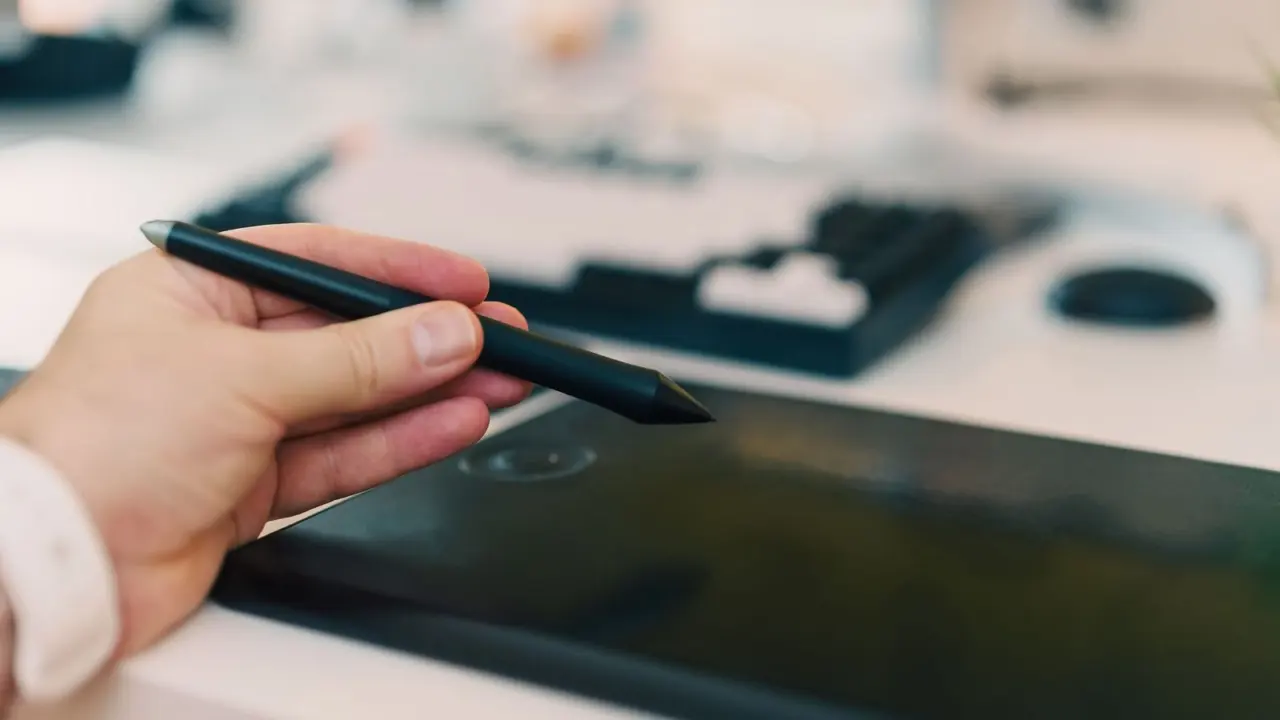
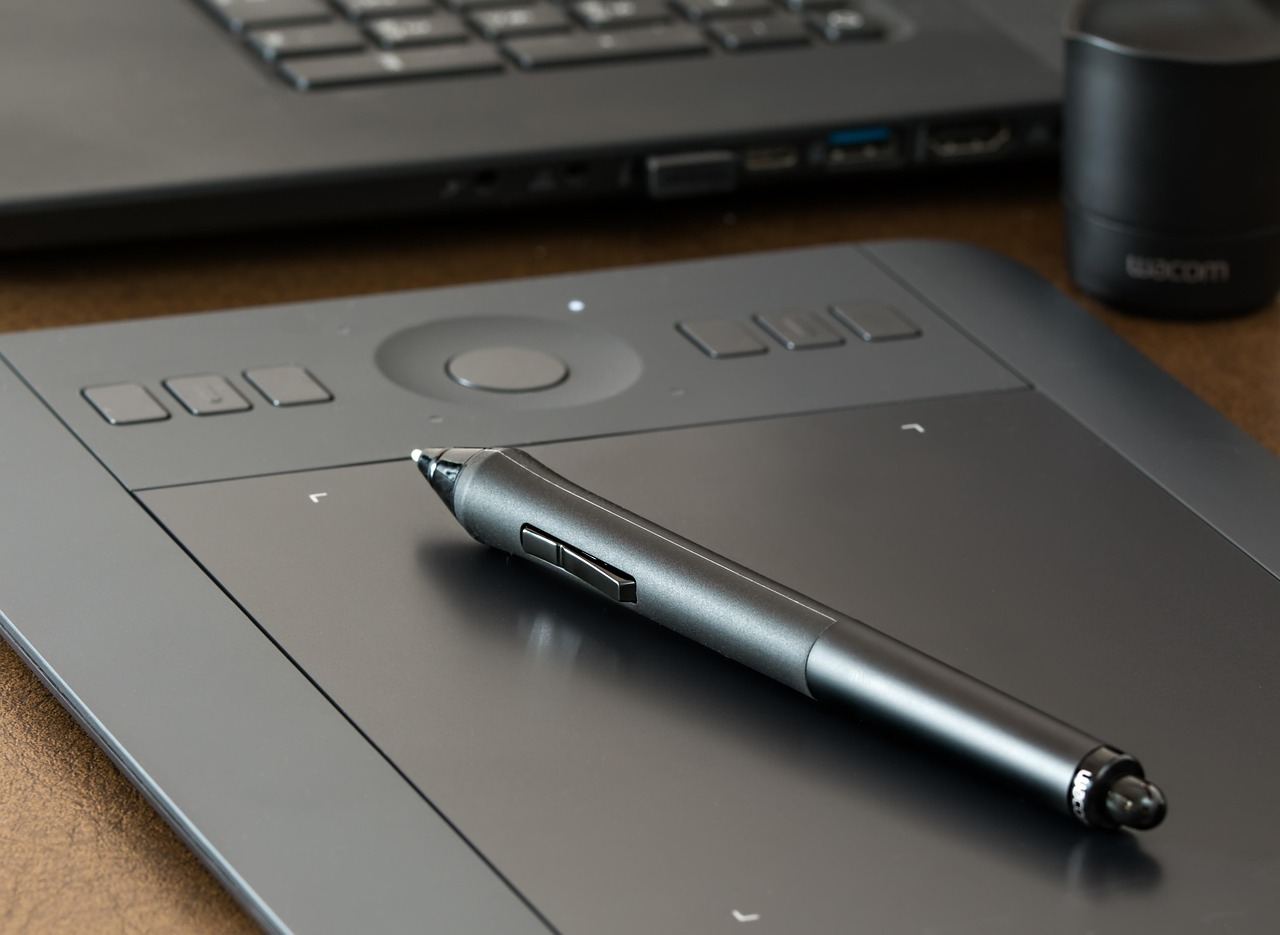
- Pen tablet: a flat pad with no screen. You draw on the pad while you look at your monitor.
- Pen display: a screen you draw on directly, so the line appears under the pen tip.
- Pen computer: a self-contained device that runs apps itself. Creative Bloq’s list includes a best Android pen computer pick.
Drawing on a display removes the hand-eye disconnect of a standalone pad, according to the DEV Community guide. That guide also says most people need 2-4 weeks before their hand-eye coordination catches up on a pad.
Some people never fully adjust and wish they had bought a display model. If you are unsure, the same reviewer suggests trying a budget display tablet before committing to the pad workflow.
Which specs matter most
Android Central says you need the right stylus, pressure sensitivity, multi-touch display, screen size and low latency for an effortless drawing experience. A handful of specs do most of the work in daily use.
- Pressure sensitivity: the Wacom Pro Pen 2 has 8,192 levels, and Huion’s PenTech 4.0 has 16,384, according to the DEV Community guide.
- Do the extra levels help? The same guide says the gap between 8,192 and 16,384 levels isn’t perceptible to most artists.
- Entry-level pens: one BestReviews roundup lists the Wacom Intuos Wireless with 4,096 levels.
- Pen power: the Huion Inspiroy Giano uses a battery-free passive pen with electromagnetic resonance, per the Just Buy guide, so there is nothing to charge.
- Screen surface: on displays, full lamination bonds the glass directly to the panel, as the DEV Community guide explains. It lists 99% sRGB coverage for the Huion Kamvas 13 Gen 3.
- Shortcuts and touch: the Wacom Intuos Pro M 2025 supports multi-touch gestures on the pad, and the Parblo A640 V2 offers four express keys, per the Just Buy guide.
Treat pressure numbers as a tiebreaker rather than a headline. Surface feel, size and compatibility shape your daily experience far more.
How much drawing space do you need?
The active area is the part of the surface that responds to the pen. A larger area suits broad arm strokes, while a smaller one suits tight desks and bags.
- The Parblo A640 V2 has a 6 × 4 inch working area for sketches, notes and line practice, per the Just Buy guide.
- The Wacom Intuos Pro M 2025 has a 263 × 148 mm active area that stays compact on a desk.
- The Huion Inspiroy Giano has a 345.4 × 215.9 mm working area, so long lines need little zooming and panning.
Match the size to your monitor and your habits. If you draw with your whole arm, go larger; if you work mostly from the wrist or travel often, a small pad is easier to live with.
Budget, mid-range and professional examples
The models below are neutral examples taken from published roundups. They are not endorsements, and this site has no connection to any maker.
- Wacom One: Android Central calls it a great starter tablet for beginners that works with Mac, Windows and Chromebook.
- Huion Kamvas 13 Gen 3: the DEV Community guide puts it at about $150-170 for someone who wants a display tablet on a budget.
- Wacom Cintiq 16: the same guide lists about $399 and notes it is Windows and Mac only, with no mobile support.
- Wacom Movink: a BestReviews roundup praises its OLED screen without significant bulkiness, but notes it lacks wireless connectivity.
Read how each roundup is produced. The DEV Community guide states that it does not conduct hands-on testing, and Creative Bloq says it may earn an affiliate commission on purchases through its links.
A short buying checklist
- Decide between a pad and a display, remembering that a pad usually takes 2-4 weeks to get used to, per the DEV Community guide.
- Check that the tablet supports your operating system, including whether it works with phones or Chromebooks.
- Pick an active area that fits your desk, your monitor and the way you move your arm.
- Look for a battery-free pen and shortcut keys you will actually map to undo, brush and zoom.
- Compare the price at the time you buy, since quoted prices drift.
Protecting your work once you share it
Once you start sharing finished pieces, it helps to understand digital art licensing, which covers how others may use your images.
Ownership questions are a separate topic, and the guide to digital art copyright explains who holds the rights to what you create.
Frequently asked questions
Do I need a tablet with a screen?
Show answer
No. Pen tablets without a screen work well, but you must learn to draw on the pad while watching the monitor. The DEV Community guide says most people need 2-4 weeks to adjust, and some never do.
Is more pressure sensitivity always better?
Show answer
Not necessarily. The same guide says the difference between 8,192 and 16,384 levels isn’t perceptible to most artists, so other features should decide your purchase.
Do drawing tablet pens need charging?
Show answer
Many do not. The Just Buy guide describes the Huion Inspiroy Giano as using a battery-free passive pen with electromagnetic resonance, but check the pen type of any model you consider.
Will a drawing tablet work with my phone or Chromebook?
Show answer
It depends on the model. Android Central says the Wacom One works with Mac, Windows and Chromebook, while the DEV Community guide lists a Wacom pen display as Windows and Mac only, with no mobile support. Always confirm compatibility before you buy.